How do I Use Anacoda/Cona with Inference.ai?
Written By chloe kwok
Last updated Over 1 year ago
Yes! Inference.ai fully supports Anaconda and conda environments.
You can use conda to manage packages, create virtual environments, and install dependencies just like you would on a local machine.
Getting Started
Once your server is running:
Open a terminal (via SSH or JupyterLab)
Create a new environment
conda create -n myenv python=3.10
conda activate myenv
Install packages as needed:
conda install numpy pandas scikit-learnPro tip: Environments and packages are reset when the server stops, unless you are using persistent storage
Keeping Your Python Environment in Permanent Storage
Note that:
Conda must be installed and be on your path
The OS which the environment was built must match the OS of the target
Once an environment is unpacked and conda-unpack has been executed, it cannot be relocated
Create a
Server
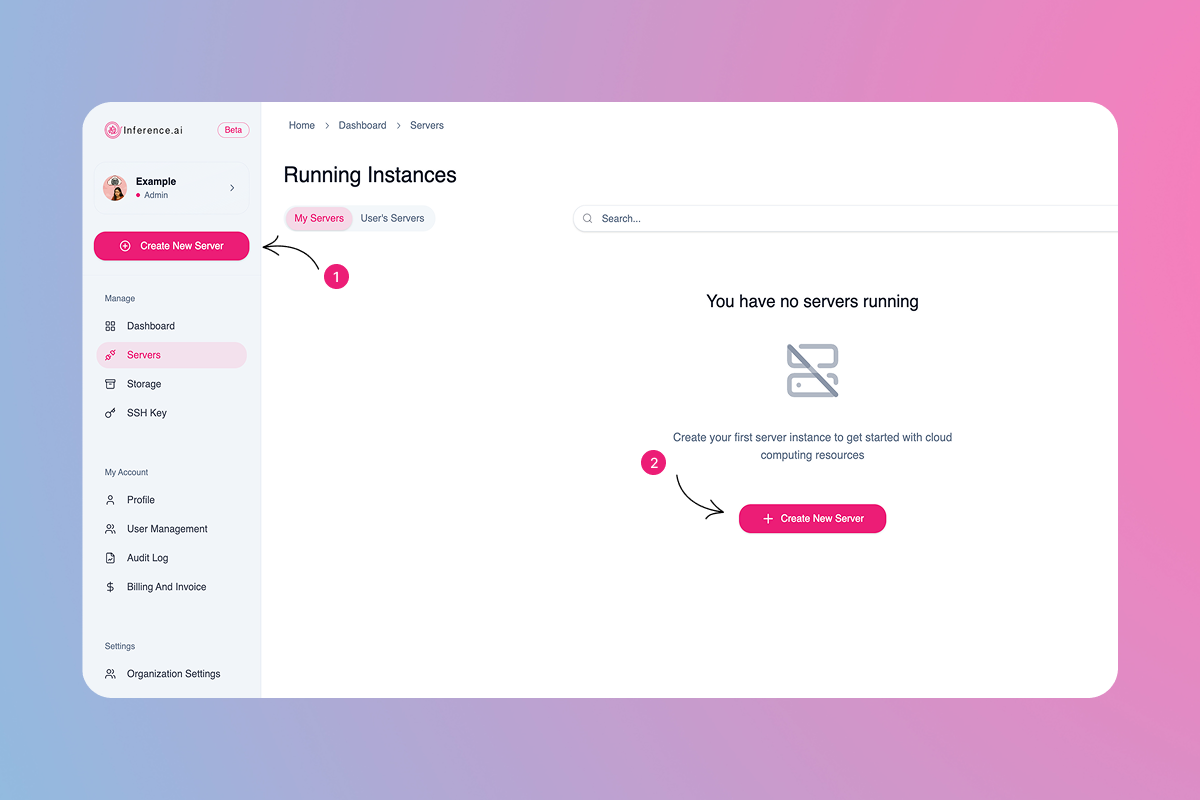
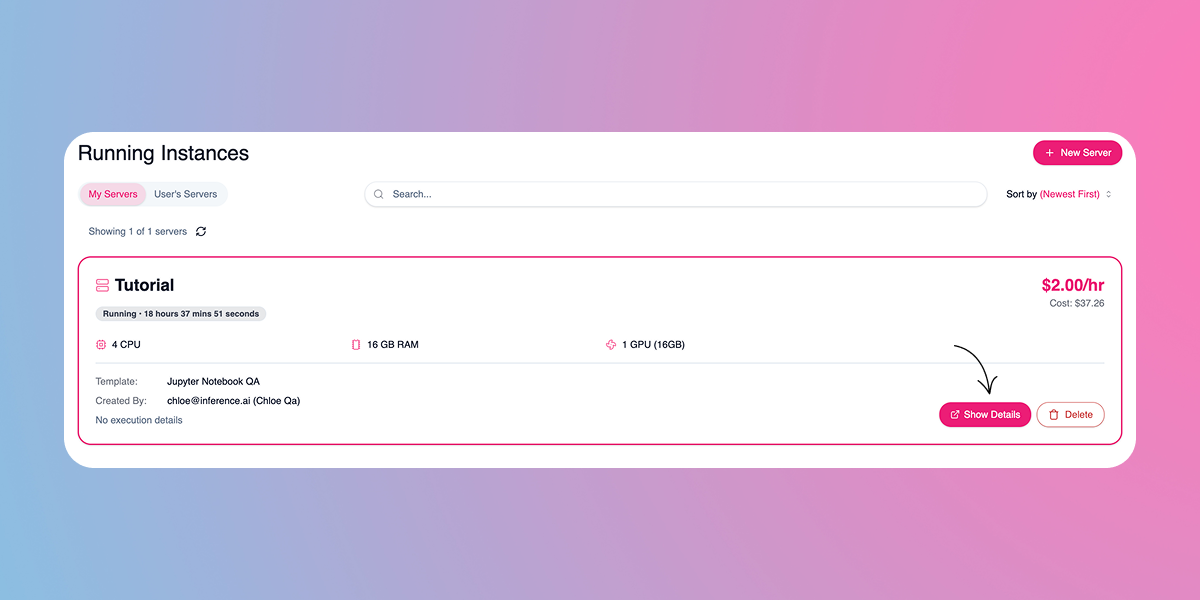
Select
Show Details
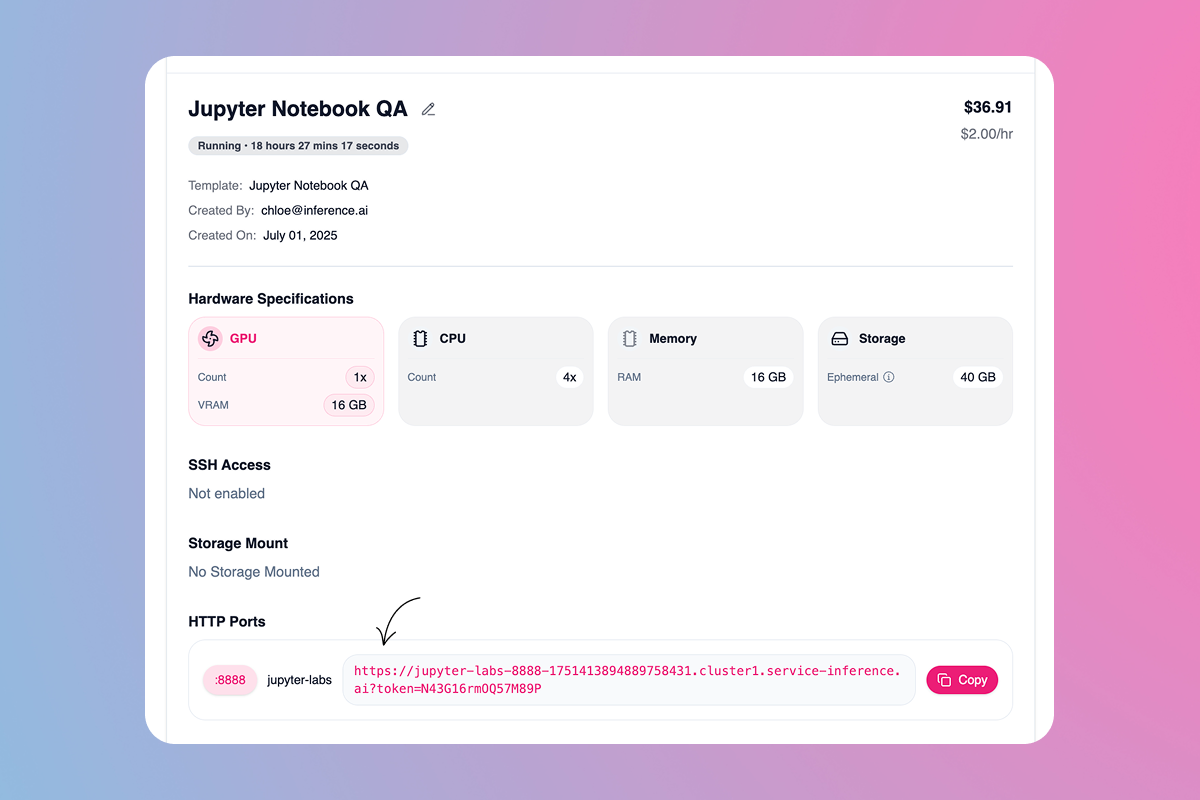
Select the Jupyter-labs link from the
HTTP Portssegment
Select
Terminal

Run
conda create -p /tmp/env python=3.12 numpy pandas -y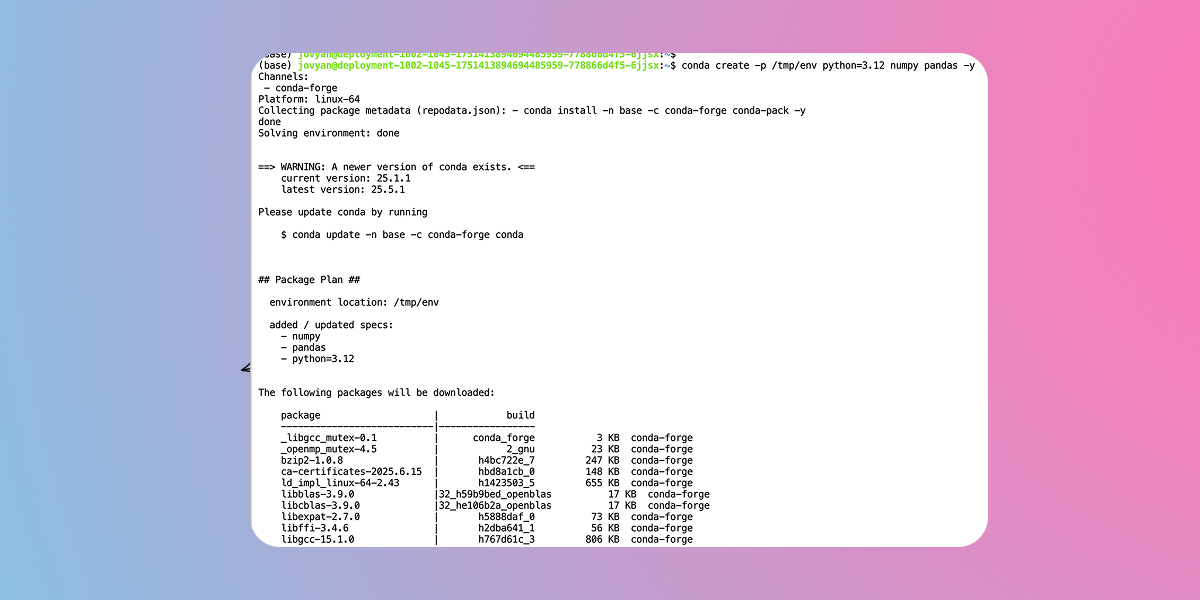
Run
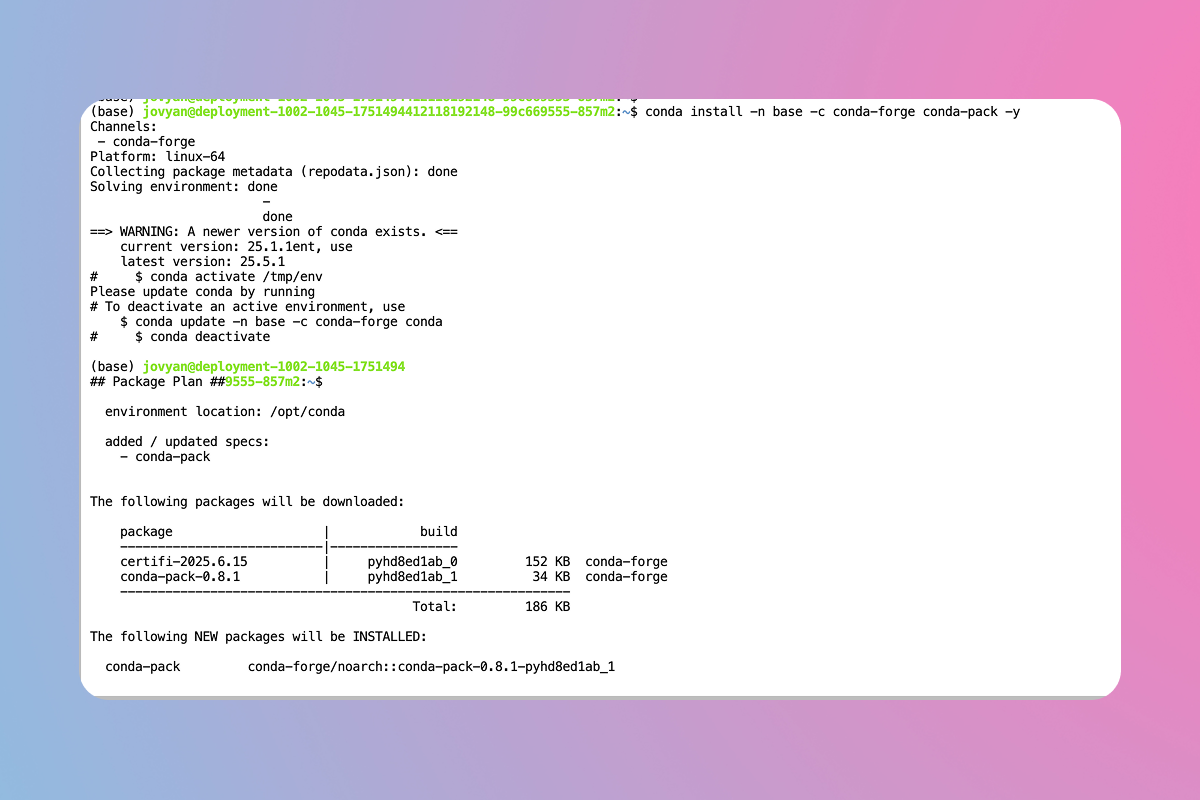
conda install -n base -c conda-forge conda-pack -y
Run
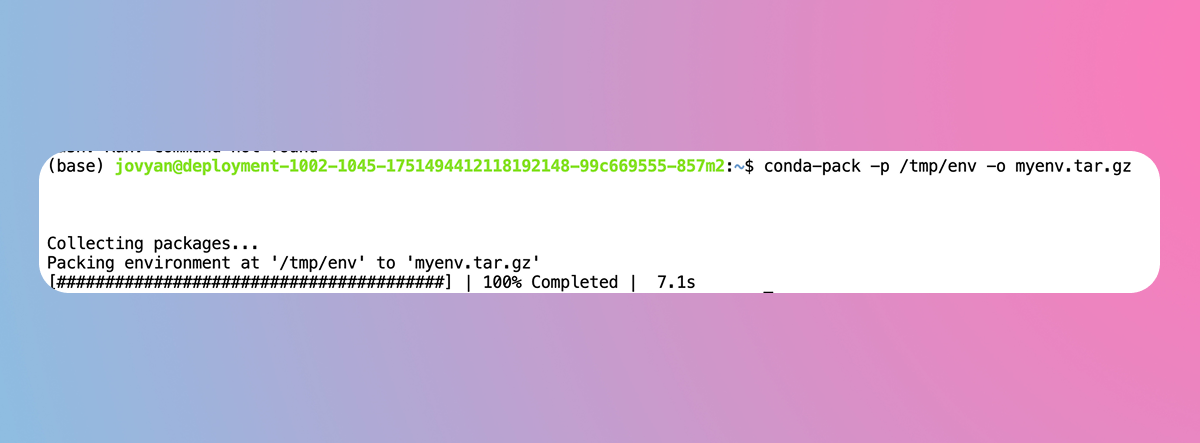
conda-pack -p /tmp/env -o myenv.tar.gz
Run
mv myenv.tar.gz /home/jovyan/work
Do this portion on the target machine
Unpack the environment into your directory with
$ mkdir -p my_env $ tar -xzf out_name.tar.gz -C my_envUse Python without activating or fixing the prefixes
./my_env/bin/pythonActivate the environment
$ source my_env/bin/activateRun Python from in the environment
(my_env) $ pythonCleanup prefixes from in the active environment
(my_env) $ conda-unpackRun
(my_env) $ ipython --versionDeactivate the environment to remove it from your path
(my_env) $ source my_env/bin/deactivate
Still need help? Ask the team