Dashboard Functions
How to navigate across your dashboard and utilize all its functions
Written By chloe kwok
Last updated Over 1 year ago
Welcome to the inference.ai dashboard — your central hub for tracking usage, managing servers, and keeping your team’s projects on budget. Whether you're a student, researcher, or team admin, this guide will help you get familiar fast.
Overview: At-a-Glance Insights
1. Dashboard Cards
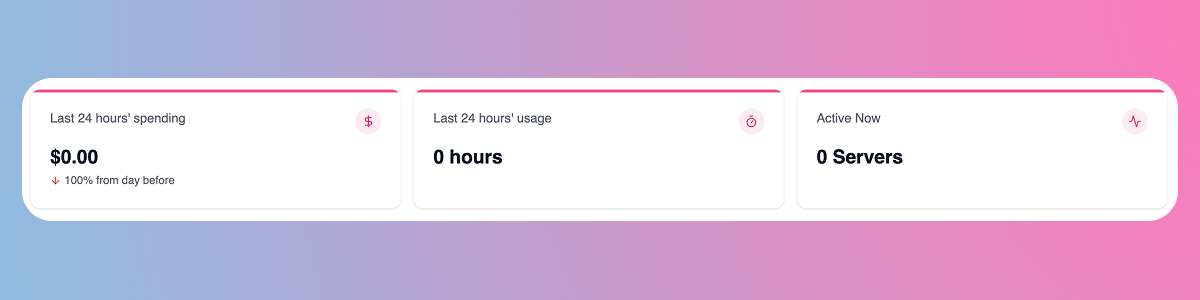
When you log in, you land on the Dashboard > Overview page. Here's what each card shows:
Last 24 hours’ spending: Get a snapshot of your recent costs. You’ll see the total spend and how it compares to the previous day
Last 24 hours’ usage: Displays the total hours of GPU compute used across your team or organization
Last 24 hours’ usage: How many servers you or your team are currently running
2. Usage Graph
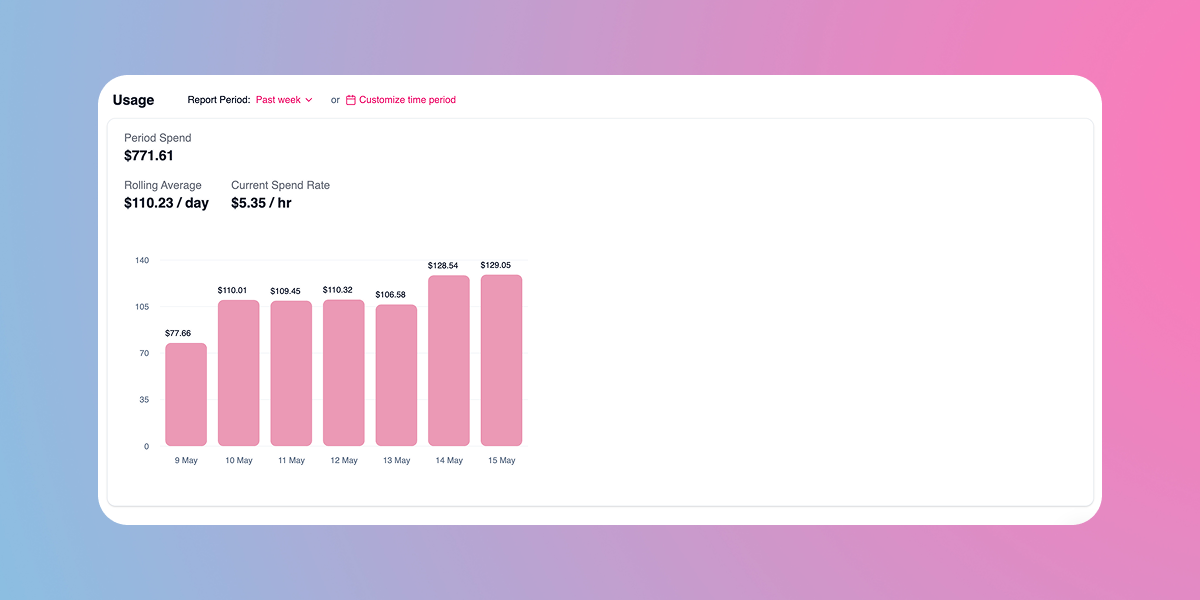
Scroll down to the Usage section for deeper analytics:
Period Spend: Total amount spent over the selected time window (e.g., past week).
Rolling Average: Your average daily spend, useful for budgeting.
Current Spend Rate: Your real-time cost per hour across active instances.
Pro tip: Use the report period dropdown to customize your timeframe to analyze trends and plan ahead
Left Sidebar: All Your Tools
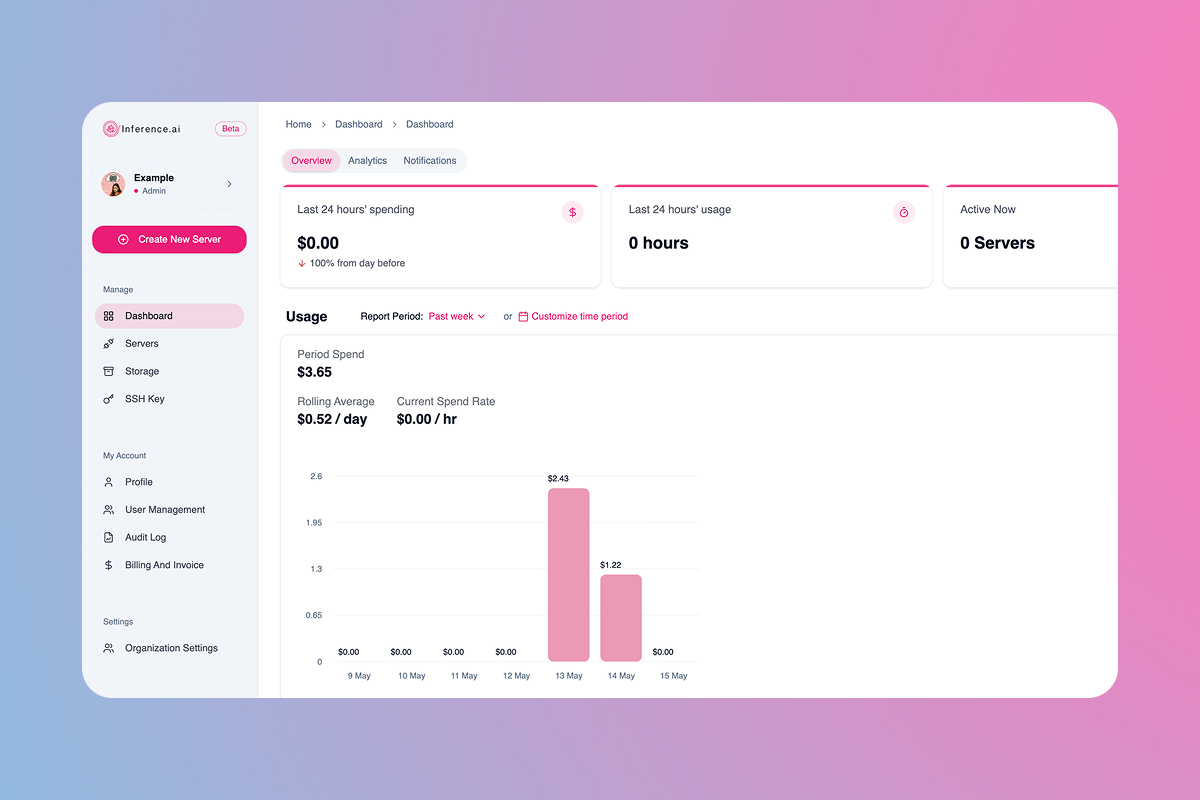
1. Manage
Dashboard: The default summary view
Servers: Create, monitor, and control your GPU instances
Storage: Create storage volumes or sync with your Google Drive storage
SSH Key: Securely connect to servers via your terminal
2. My Account
Profile: Manage your user details
User management: Add/remove team members and assign roles (Admin view only)
Audit log: View system actions for team transparency (Admin view only)
Billing and Invoice: Track payment history, download invoices, and add credits
3. Settings
Organization settings: Set limits, manage credits, and configure policies for your entire organization
Pro tip: Limits can be adjusted for either your entire organization or individual users
Still need help? Ask the team